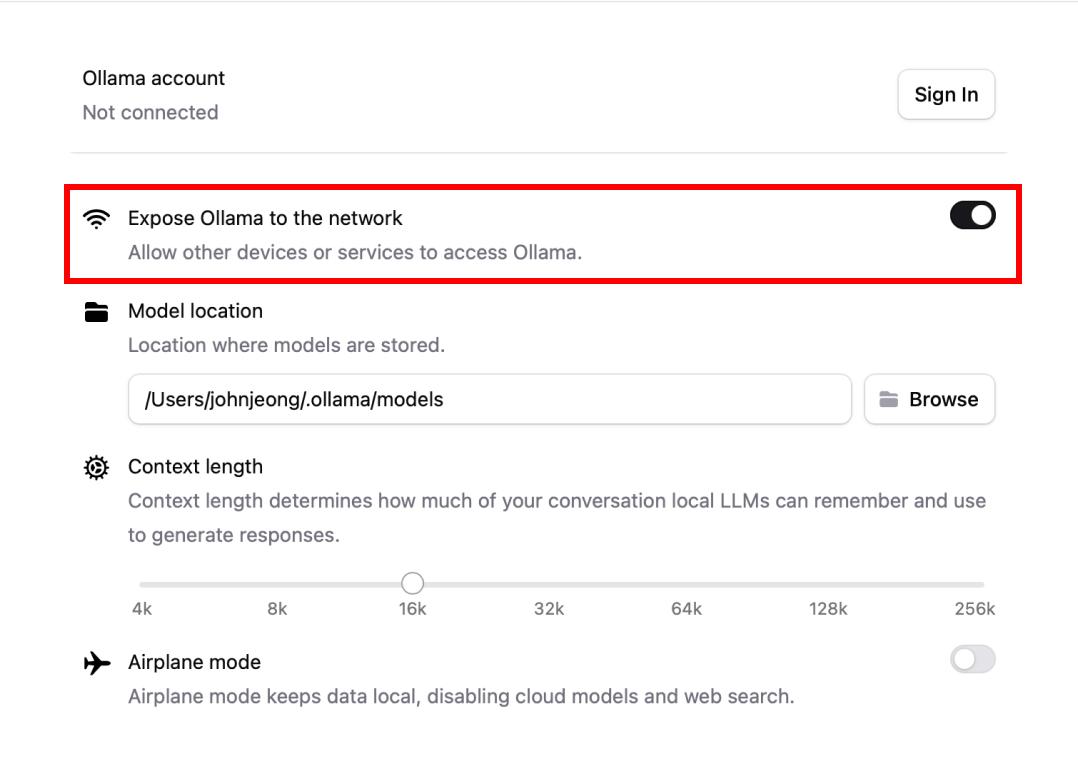
LM Studio Setup
LM Studio is a desktop application that lets you run large language models locally on your computer.
Configuration
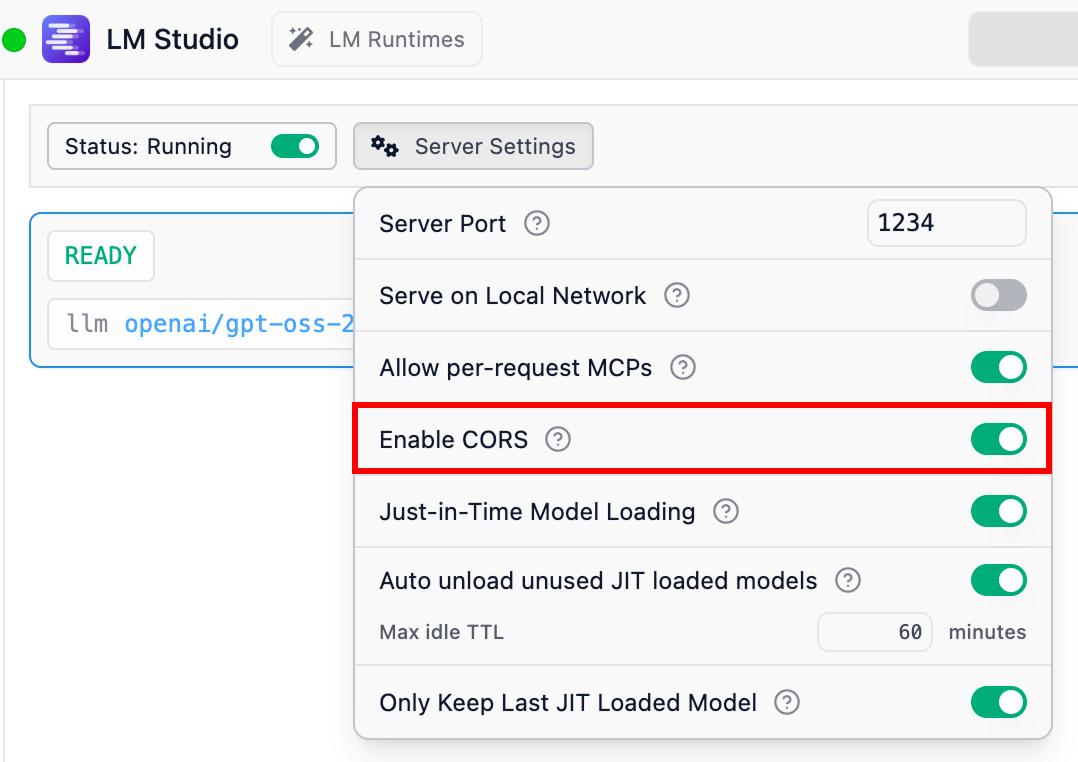
- Go to the Developer tab in LM Studio
- Click Start Server to start the local server (default port is 1234)
- Enable CORS in the server settings - this is required for Hyprnote to connect
Connecting to Hyprnote
- Open Hyprnote and go to Settings > Intelligence
- Expand the LM Studio provider card
- The default base URL
http://127.0.0.1:1234/v1should work if you haven't changed the port - Select LM Studio as your provider and choose a model from the dropdown
Troubleshooting
If Hyprnote cannot connect to LM Studio:
- Ensure the LM Studio server is running (check the Developer tab)
- Verify CORS is enabled in LM Studio settings
- Check that the port matches (default is 1234)
- Make sure no firewall is blocking the connection
Ollama Setup
Ollama is a command-line tool for running large language models locally.
Connecting to Hyprnote
- Open Hyprnote and go to Settings > Intelligence
- Expand the Ollama provider card
- The default base URL
http://127.0.0.1:11434/v1should work - Select Ollama as your provider and choose a model from the dropdown
Troubleshooting
If Hyprnote cannot connect to Ollama:
- Ensure Ollama is running (
ollama serve) - Check that you have at least one model pulled (
ollama list) - Verify the port is correct (default is 11434)
- On macOS, Ollama may already be running as a background service